
In this tutorial, we’ll explore the exciting possibilities of customizing your Weikav Lucky65 V2 keyboard. We’ll delve into the art of key mapping, empowering you to tailor your keyboard layout to your specific needs and preferences. Additionally, we’ll guide you through the process of creating powerful macros, streamlining your workflow and boosting your productivity. And last but not least, we’ll unlock the full potential of your keyboard’s RGB lighting, allowing you to personalize its appearance and create stunning visual effects.
Before we dive into the customization process, let’s ensure that your Weikav Lucky65 V2 is ready.
Connect Your Keyboard
Cable Connection: A wired connection is crucial for stable customization. Connect your keyboard to your computer using a Type-C cable. This ensures a reliable connection for the software to recognize and interact with your keyboard.
Download the VIA Jason File
Download Link for reference. Download Link
Download the File: Locate and download the “lucky65V2.jason” file. This file is essential for customizing your keyboard using the VIA software.
Now that you have everything prepared, let’s get your keyboard connected to the VIA software:
Head to VIA Website:
Open your web browser and navigate to the official VIA website: https://usevia.app/
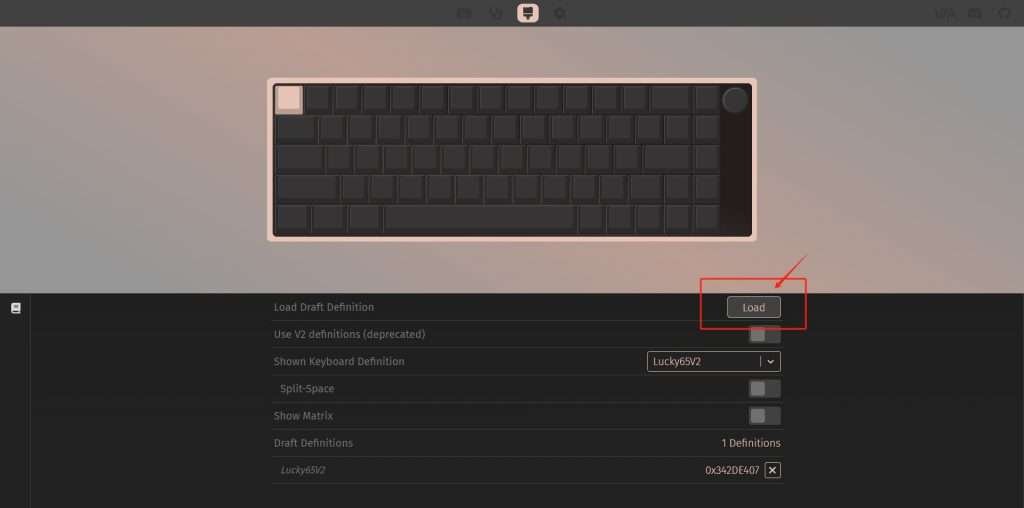
Enable Design Tab:

Load the Keyboard Layout
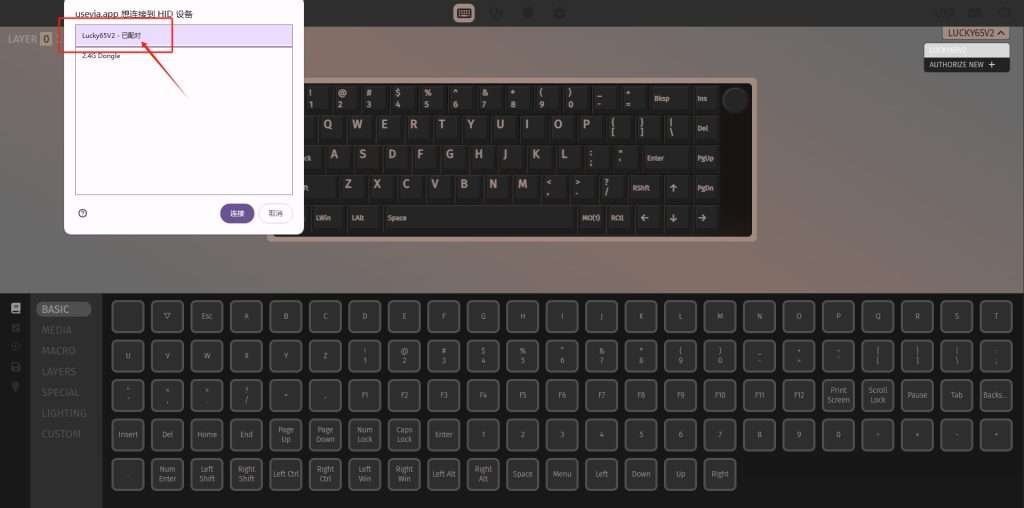
Authorize Your Keyboard:
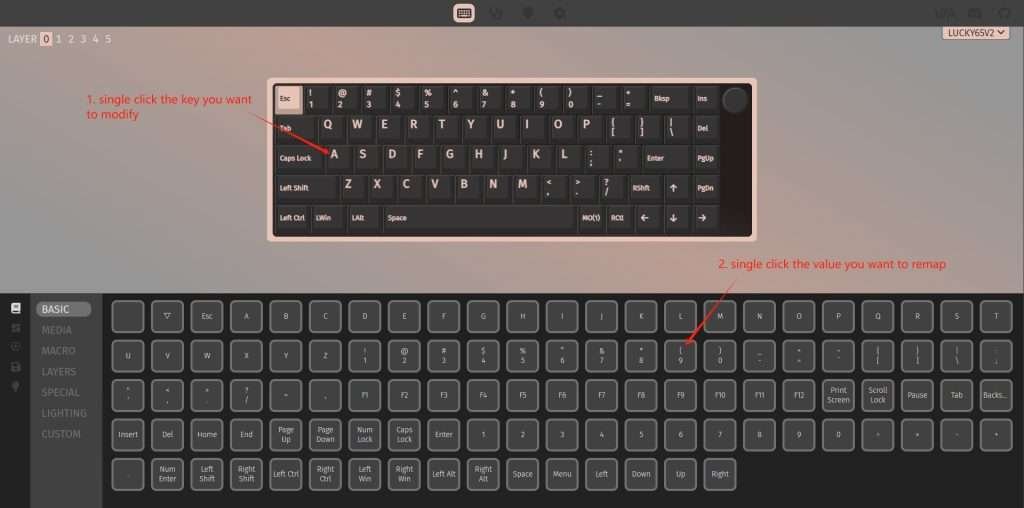
With your keyboard authorized in VIA, you can now start customizing your key layout.
Understanding the VIA Interface:
The VIA interface presents a visual representation of your keyboard. The top row of keys displays the current key assignments, while the bottom row allows you to remap these keys to your desired functions.

Remapping Keys:
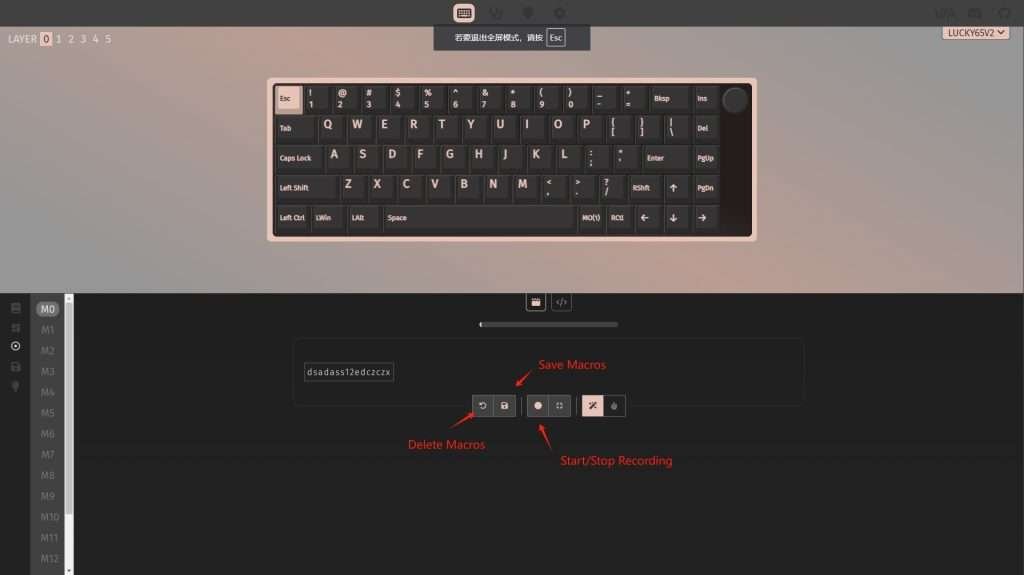
Macros can significantly streamline your workflow by automating repetitive keystrokes. Let’s explore how to create and assign macros in VIA:
Access the Macros Tab:

Record a Macro:
Save or Delete the Macro:
You can choose to save the recorded macro or delete it. VIA allows you to create up to 15 different macros.
Assign a Macro to a Key:

The Weikav Lucky65 V2 offers stunning RGB lighting customization options. Let’s explore how to tailor the lighting effects to your preferences:
Access the LED Settings:
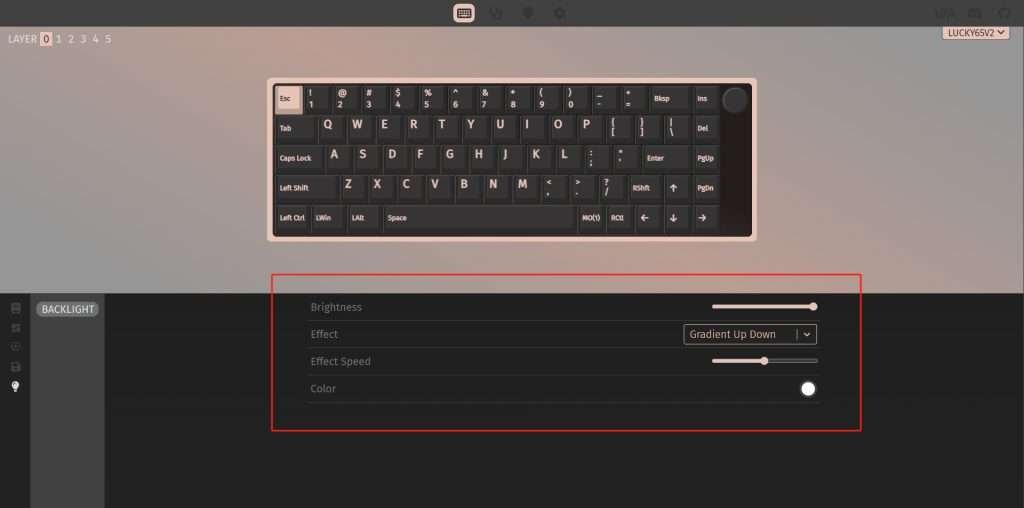
Customize Your Lighting:
Brightness: Adjust the overall brightness of the LEDs.
Lighting Effect: Choose from a variety of dynamic effects like breathing, wave, ripple, and more.
Lighting Speed: Control the speed of the selected lighting effect.
Color Palette: Select from a wide range of colors or create custom color palettes.
By following these steps, you’ve unlocked the full potential of your Weikav Lucky65 V2 keyboard. You’ve learned how to customize key mappings, create efficient macros, and personalize the RGB lighting to your liking. Remember, the possibilities are endless. Experiment with different configurations and find the perfect setup to enhance your typing experience. Happy customizing!
